
Create your own custom Trend Set to follow the trends that you’ve already invested in, are thinking of investing in, or want to pull back on. All with the capability of monitoring these trends over time. Use this tool to dive into a larger theme, monitor emerging trends you aren’t ready to invest in yet, or track performance of next season’s confirmed assortment.
Check out our video on how to create a Trend Sets filter and edit it as well!
There are 2 ways to create a custom Trend Set filter:
1. After making your Trend Category, Gender, and/or Trend Type selections, scroll to the Table to select the bubble next to each of the trends you would like to add to a new or existing Trend Set (select all, a few).
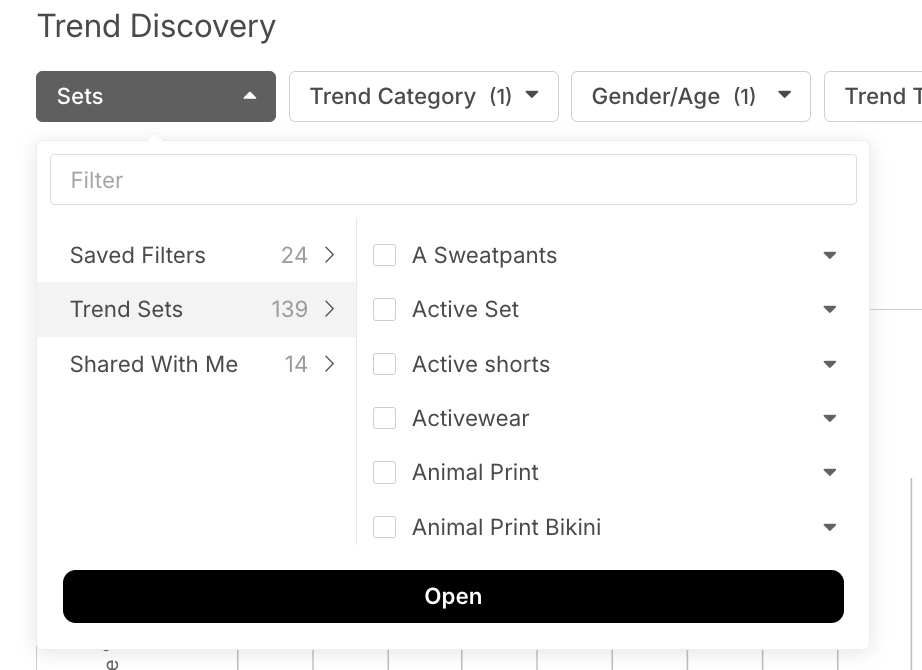
Then click “Sets” and select Create a New Set or select the existing Custom Set you would like to add the trend to.
.gif?width=617&height=347&name=Untitled%20design%20(5).gif)
Refer to the Sets drop down to easily search for and access the Trend Sets you have created.
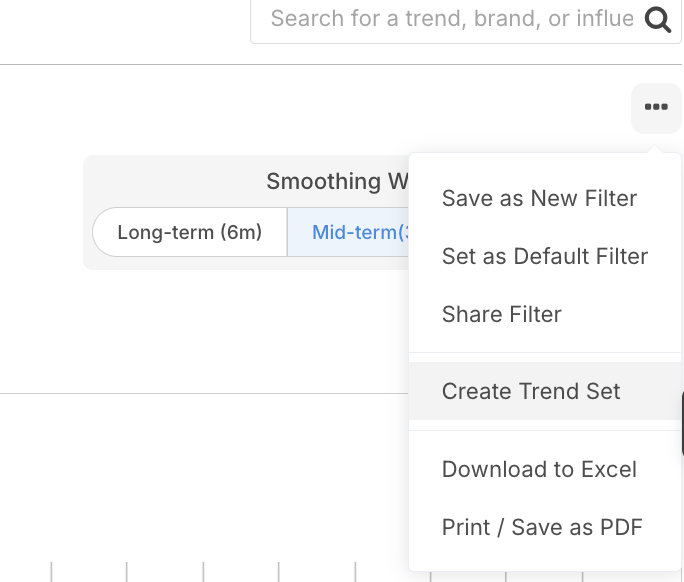
2. You can also create a Trend Set, by clicking the '...' icon in the top right hand corner to "Create Trend Set".
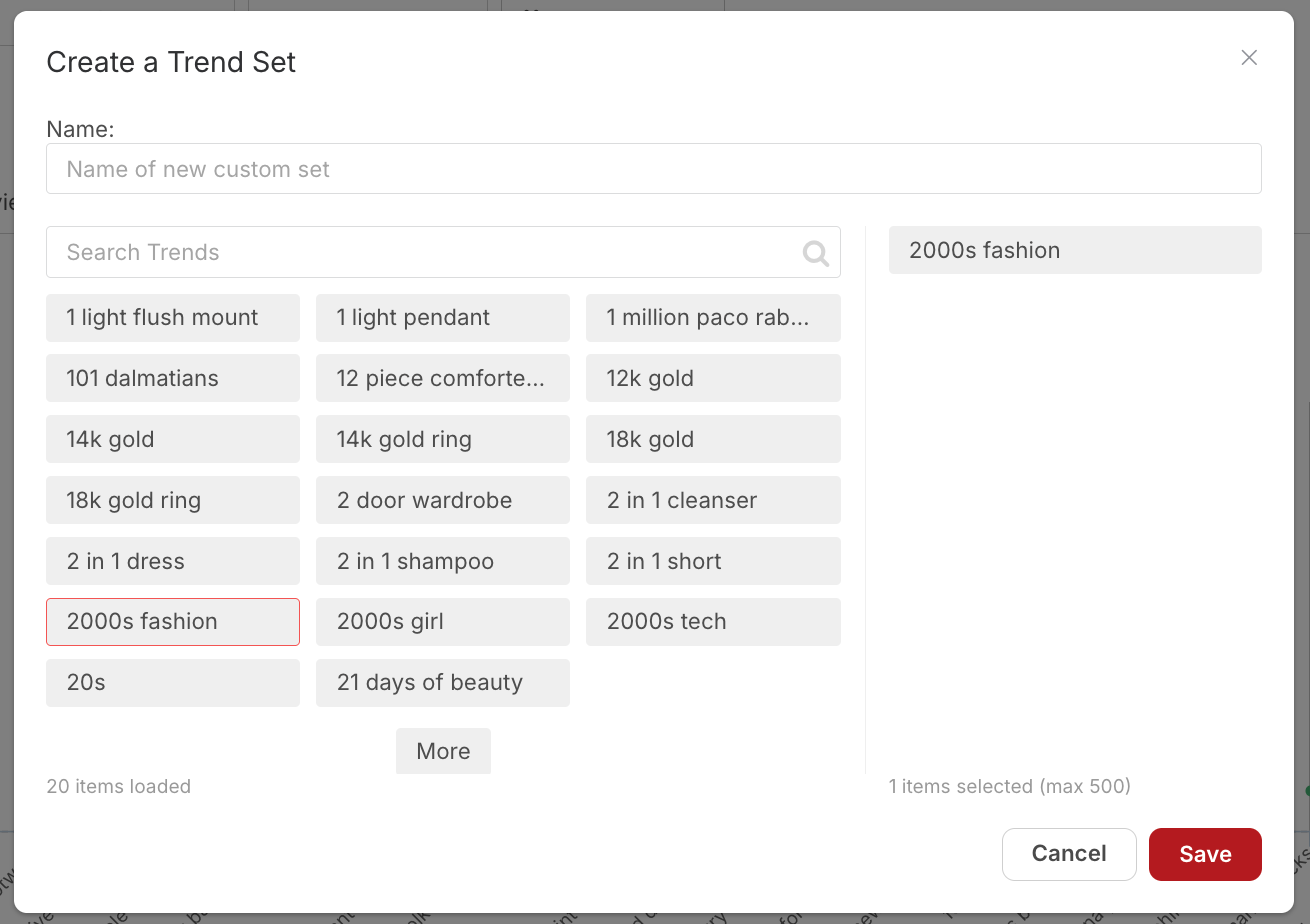
Enter a name in the Name field, then use the search bar to find the trends you want to add to your set. Click a trend name to add it, and it will appear on the right side of the pop-up. To remove a trend, click its name again. When you’re finished, click Save to create your set.
Note: You can include up to 500 trends in a single set.
Trend Sets are especially useful when you want to analyze a specific group of trends or themes, such as Lace Tops instead of all Tops within the trend filters. They let you tailor your dashboard and trend table to show only the trends in your set, and you can open up to 10 sets at once to compare multiple themes side by side.

You can also use Trend Sets to compare the performance of trends you’ve invested in against other top trends to see how your investments rank or what might be missing from your assortment.
Trend Sets provides you with a roll up of data with a quick and concise overview, whether you are trying to understand if you should invest in a set of trends, track trends that you’ve already invested in, or just want to understand how large of an idea something may be. These insights are broken out by Search and Social data to provide further analysis into these sources.
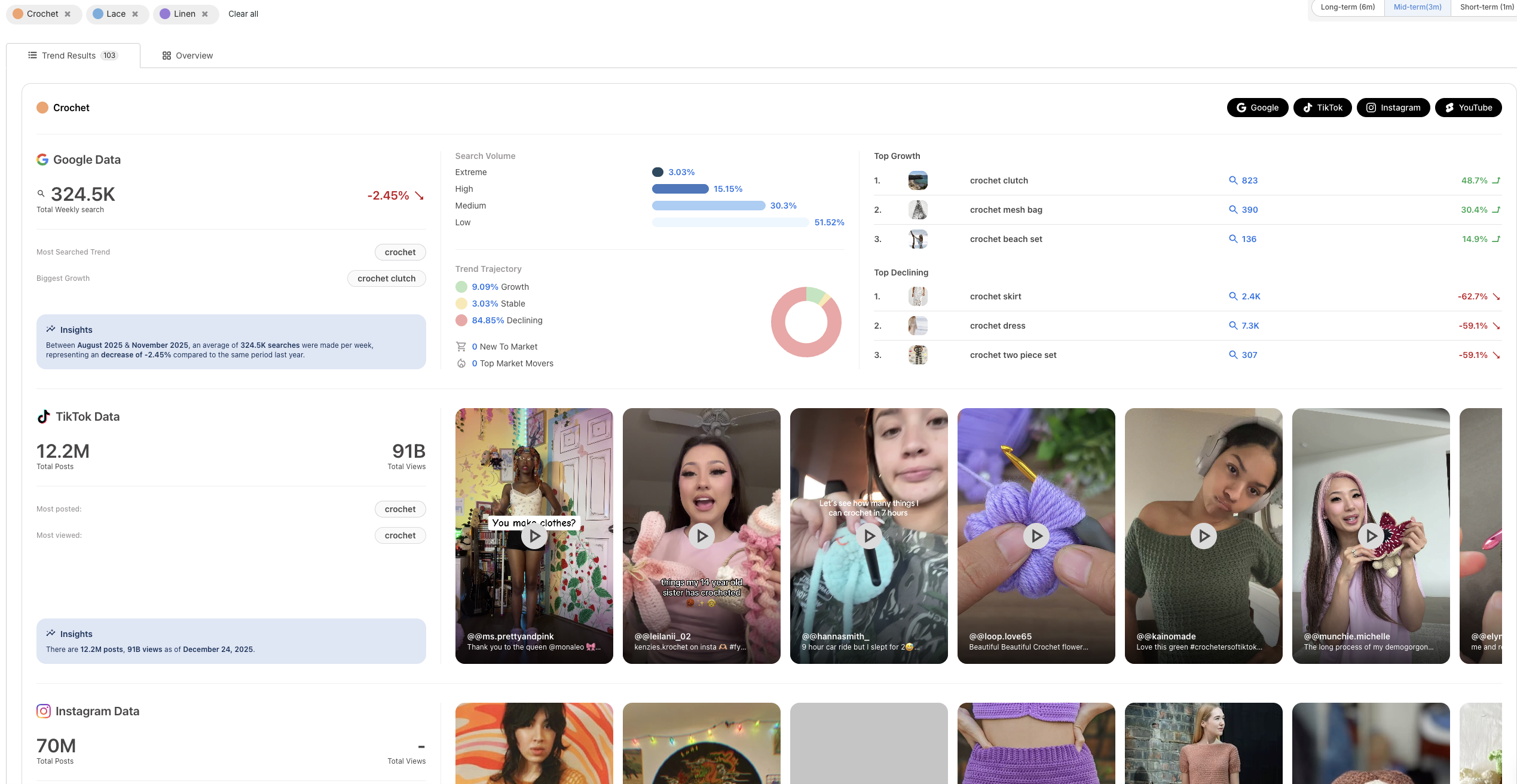
You can also deselect any of the sources you do not wish to compare, by clicking on it in the top right corner.


How and When to Use this Tool
- Understand a Larger Theme Around a Trend: Use sets to understand how large an idea is and how it’s trending. Is the overall distressed/ripped denim look growing? Use a custom trend set to group all of the variations of distressed/ripped denim terms and understand overall how this concept is trending.
- Understand nomenclature for the same concept/product: Are people searching for an activewear romper or an active onesie? Use the table to understand how the market is calling out this trend as well.
- Compare two (or more) ideas: Are mini skirts or maxi skirts seeing stronger overall interest? Group all of the mini terms into one set and the maxi terms in another set, to compare. And take it one step further to analyze mini and maxi within the dresses category.
- Dissect overall macro trends (cores, aesthetics, etc.): By grouping elements that make up the aesthetic together, understand which trends are the most and least popular. This is great to monitor an aesthetic over time as it evolves throughout seasons.
- Adjust for differences in search behavior for a single item: People search for products differently, some may be highly specific, others more general when searching for a product. Ensure you capture total interest by grouping these terms together, for example, cheetah print pants vs leopard print pants vs animal print pants.
- Refer to our Macro trend filters: The Edit is a section of macro trends created and updated by our trend team. These preset filters are the macro trends of the moment to watch as they will continue to grow and evolve - so use these filters to monitor them over time and validate trends you are chasing into.
For assistance, reach out to your Customer Success Manager with any questions!